 how-to
7 Steps to Accept Cashless Busking Tips
Updated 1 November 2026
To accept cashless busking tips, give supporters a clear way to open your checkout, connect your payment provider and test the complete journey before you perform. A printed QR code can get you started without a dedicated card terminal. An optional smartphone NFC access point gives people another way to reach the same checkout.
The practical goal is simple: someone should be able to see the sign, understand what to do and complete their support on their own phone while you keep performing.
What you need before your first cashless set
- An artist account with a working support checkout.
- A connected payment provider with its required setup completed.
- Your official support QR code, printed clearly.
- A second phone for testing.
- Internet access on the supporter's phone to open checkout and pay.
With My Fedora, you can create a free artist account and download your official support QR. Receiving payments also requires connecting a supported payment provider and completing its onboarding. Downloading a QR alone does not make your account ready to receive support.
1. Create your artist account and find the right support link
Start with the My Fedora free QR page. Use an artist name people will recognise from your sign or performance.
Your support QR should open your artist's online checkout directly. Test that destination rather than assuming any link to your profile, social account or shop will do the same job. Those pages serve different purposes and can add unnecessary steps when someone is ready to tip.
Keep a copy of the official QR artwork somewhere you can find it again. If you change accounts or payment arrangements later, recheck the printed code before your next set.
2. Connect your payment provider and complete setup
Follow the payment connection steps in your artist account. Complete any verification or payout setup requested by the provider, and check for outstanding requirements.
These are separate milestones: creating an account, opening checkout, accepting a payment and receiving a bank payout. A successful account registration does not confirm all four.
Before performing, check that your provider connection is active and that your payout details are correct. Review the provider's own dashboard if it shows a restriction or asks for more information.
3. Understand what the artist and supporter may pay
My Fedora deducts 0% from the selected artist-support amount. Ordinary payment-provider fees may still apply, so this should not be described as every payment being free to process.
A separate contribution to My Fedora is optional and unchecked by default. A supporter can choose whether to add it; it is not a required charge for supporting the artist.
Review the My Fedora payments information and your connected provider's pricing before choosing suggested amounts. Avoid promising that the full amount will reach your bank without deductions, or that funds will arrive instantly. Processing charges and payout timing depend on the payment arrangement.
4. Print a QR sign people can recognise and scan
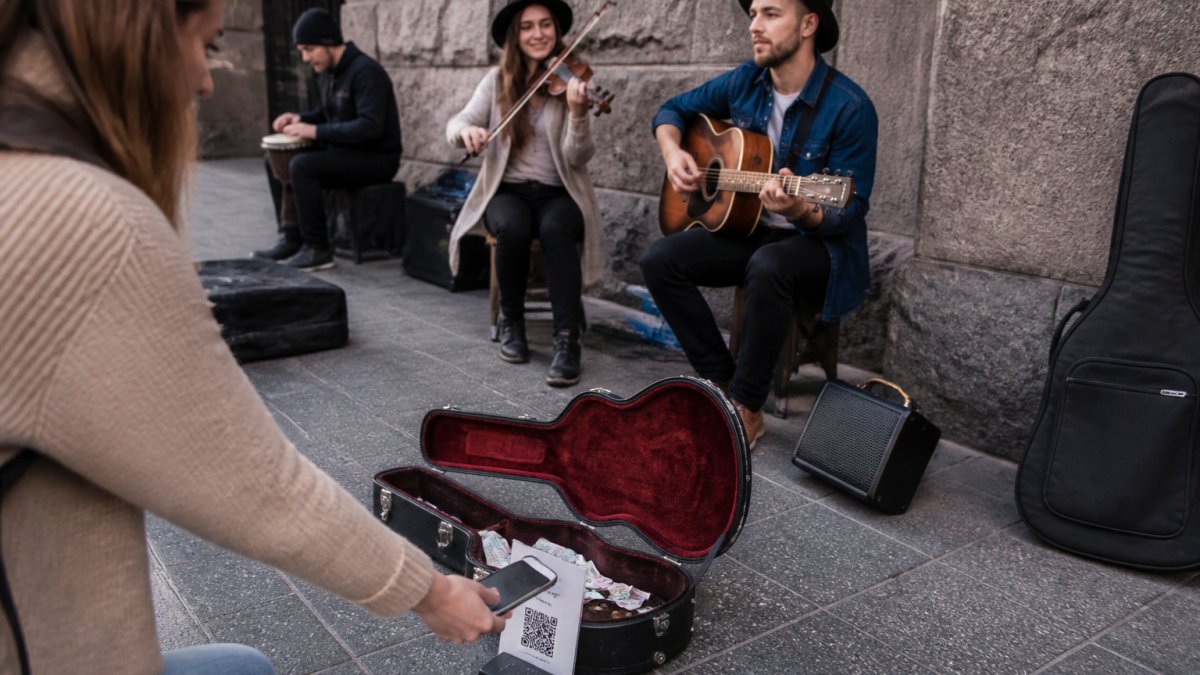
Use a short instruction that matches the action: “Scan to support” works for a QR-only sign. Put your artist name next to it so people can check that the destination belongs to you.
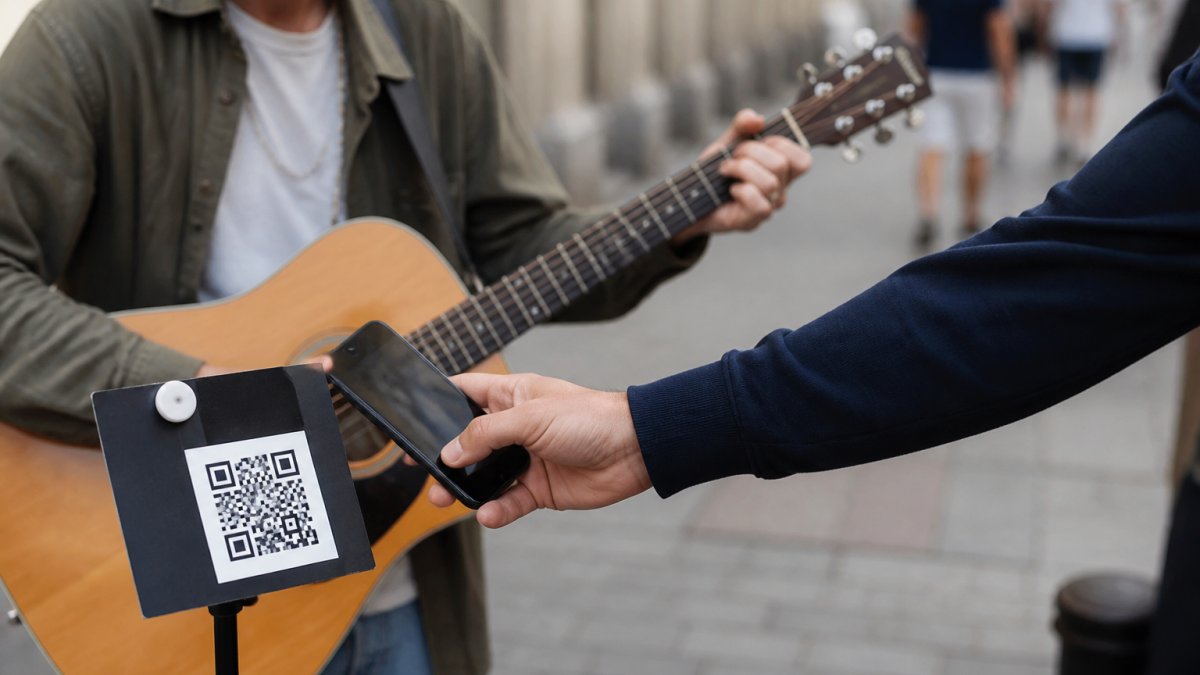
Print the QR sharply, keep it square and preserve the clear border around it. DENSO WAVE, the developer of QR Code, specifies a quiet zone four modules wide on every side. Do not crop that border or crowd it with lettering.
- Choose a size people can scan from the distance at which they will actually stand.
- Use a flat, clean display with strong contrast.
- Avoid folds, glare and decorative graphics over the code.
- Position it where someone can stop safely without stepping into your performance space.
- If you add a typed backup URL, use the exact working support address and test it too.
There is no single print size that suits every pitch. Make a test print and scan it from the intended viewing position. Our guide to displaying QR codes at live performances covers placement in more detail.
5. Test the complete checkout on a second phone
Test the physical sign, not just the image on your laptop. Use another phone so you see the journey a supporter encounters.
- Scan the printed QR with the phone's camera.
- Check that it opens the correct artist checkout.
- Choose a small amount and review the total and any optional contribution.
- Complete a real test payment using an available checkout method.
- Check the confirmation, then verify the payment in your account or provider records.
A test payment can incur normal processing fees. It confirms that particular transaction worked; it does not guarantee every future payment or bank payout.
Repeat the connection check at your actual pitch using mobile data. Venue Wi-Fi and street-level mobile coverage can give different results. For a fuller checklist, see how to test your busking payment setup.
6. Set up your display and explain it once
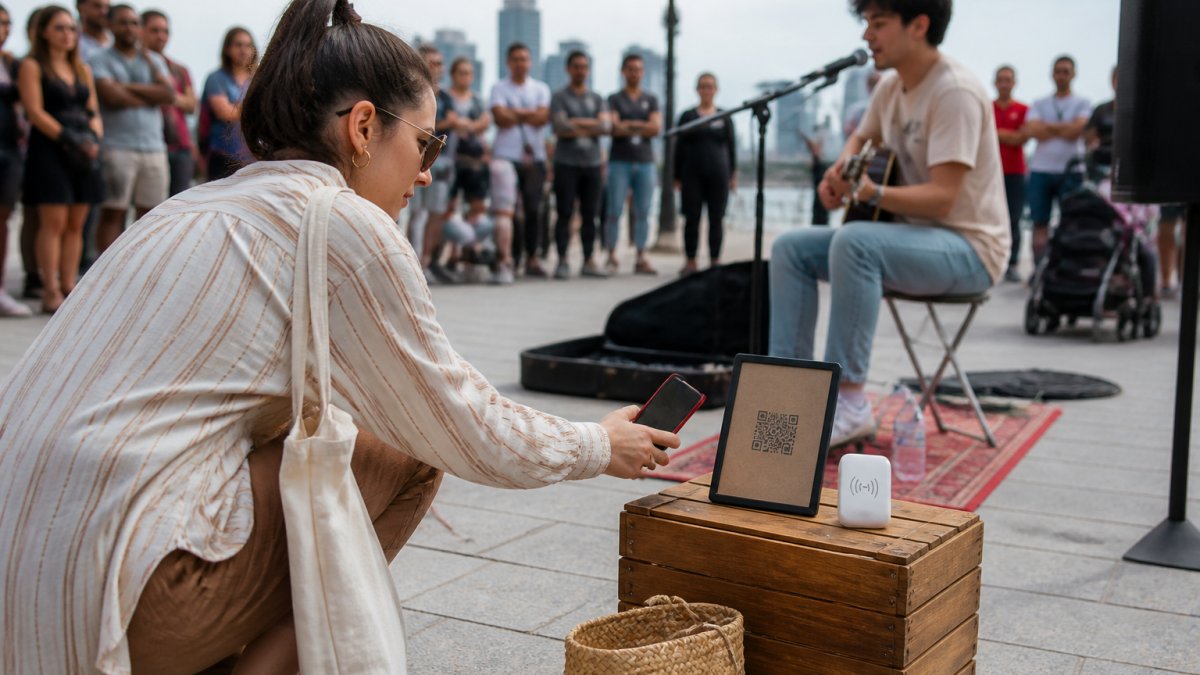
Make the sign visible without making it an obstacle. A simple line between songs is enough: “If you'd like to support the set, you can scan the QR here.” Leave people room to decide and complete checkout privately on their own phones.
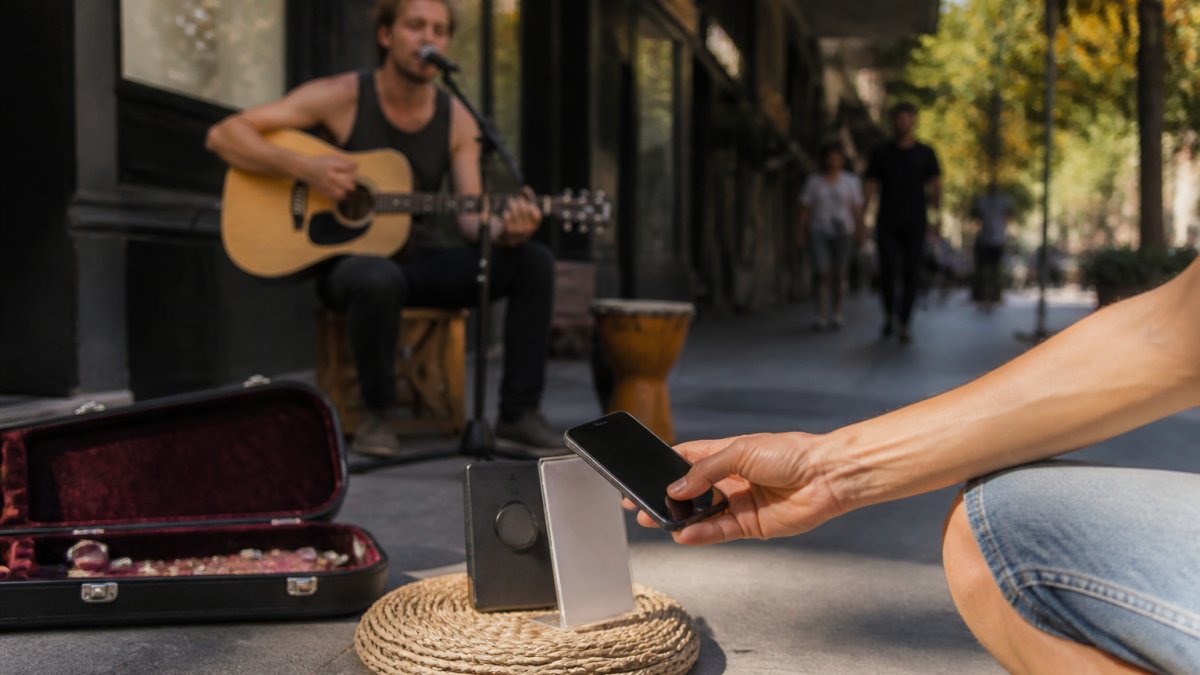
If you add a My Fedora Tip Puck, label the action clearly: “Tap your phone or scan to support.” The Tip Puck is a smartphone NFC/QR access point that opens the artist's online checkout. It is not a bank-card reader or EFTPOS terminal, and tapping a debit or credit card against it will not make a payment.
The supporter's compatible phone needs internet access. The Tip Puck does not store card details or create, queue or settle offline transactions. Mobile data can replace venue Wi-Fi, but an online checkout still needs a connection. See accepting tips without Wi-Fi for that distinction.
A small, secure cash option can cover situations where a supporter has no usable connection or prefers cash.
7. Review payments after the set
Check completed, pending and failed payments in the relevant account or provider records. Keep transaction statements and fee records so you can reconcile payments against payouts.
Do not use a supporter's screenshot as your only confirmation. If someone is unsure whether a payment completed, check the transaction status before encouraging another attempt; repeating checkout can create a duplicate payment.
Recheck your printed QR periodically and after account changes. Replace damaged signs and inspect them for stickers or alterations that could send supporters to a different destination.
Troubleshooting: find the stage that failed
Problem | What to check first |
|---|---|
The camera cannot read the QR | Check print sharpness, the clear border, glare, damage and scanning distance. Try another phone. Internet access does not fix an unreadable print. |
The phone reads the code, but the page will not load | Check the phone's internet connection and the destination address. Try the verified support URL directly. If it opens the wrong artist or an unexpected page, stop using the sign until corrected. |
Checkout opens, but payment fails | Read the displayed error and check your provider connection or restrictions. Do not ask supporters to share card details with you. |
Payment is confirmed, but the bank payout is missing | Check the provider's payout status, schedule, verification requirements and bank details. Reprinting the QR will not resolve a payout delay. |
Get your cashless busking setup ready
A clear sign and a tested checkout are a useful starting point. Create your artist account, connect your provider, print your official support QR and run a small end-to-end test before taking it to the street.
The optional My Fedora Tip Puck adds a smartphone NFC route to the same online checkout. My Fedora deducts 0% from the selected artist-support amount; ordinary provider fees may apply, and any separate supporter contribution to My Fedora is optional and unchecked by default.
Get your free My Fedora support QR and set up your artist account.
Frequently Asked Questions
Do supporters need an app or My Fedora account to leave a tip?
No separate My Fedora supporter app or account is needed. The supporter scans the QR, or taps a compatible smartphone on a My Fedora Tip Puck, and follows the prompt to the artist’s online checkout. Their phone needs internet access. Available payment methods and any payment-provider authentication steps depend on the checkout.
How do I check my cashless busking setup before a gig?
Connect your payment provider and complete its required setup, then scan the printed QR using a second phone. Check the artist destination, complete a small real test payment and confirm it in your account or provider records. Normal processing fees may apply. Test mobile reception at the actual pitch as well; one successful test does not guarantee every later payment or payout.
What should I do if my busking QR code does not work?
First identify the problem. If the camera cannot read it, check print quality, glare, damage and the clear border. If the code reads but the page will not load, check the phone’s internet connection and destination URL. If checkout loads but payment fails, check the error and provider connection. For a confirmed payment with a delayed payout, use the provider’s payout records rather than changing the QR.