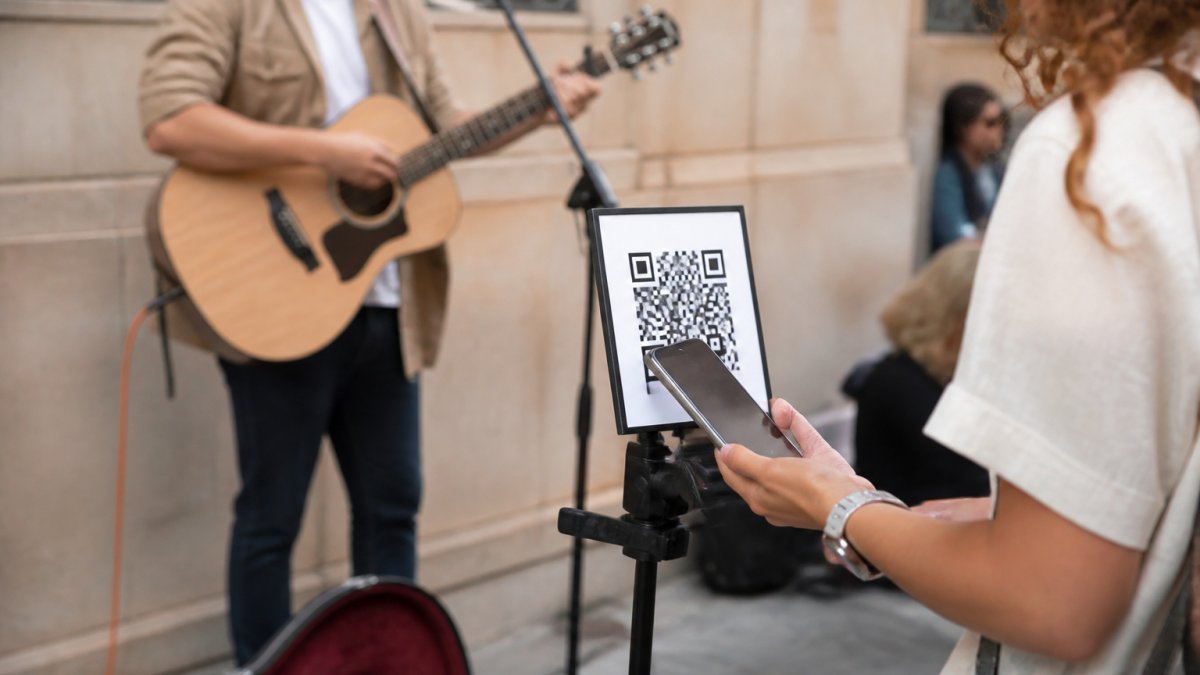
 how-to
How to Display QR Codes for Live Performances
Last reviewed: 1 October 2026
A QR code at a live performance should be easy to notice, easy to scan and clear about where it leads. The practical work is choosing a useful destination, printing the code cleanly and placing it where supporters can approach without interrupting the performance.
Good lighting helps, but so do size, contrast, viewing angle and the empty border around the code. This guide explains how to display QR codes for live performances and test the complete journey before your next set.
Choose the QR Code’s Destination First
Decide what you want someone to do after scanning. A sign that says “Scan to support” should lead to your support checkout. A sign that says “Find my music” should open your artist profile or music page.
Sign message | Useful destination |
|---|---|
Scan to support | Your artist support checkout |
Find my music | Your artist profile or music links |
Follow for future shows | A relevant social profile or updates page |
Book me for an event | Your booking or contact page |
Keep the main sign focused on one action. Several equally prominent codes can leave people unsure which one to choose. If you need both a support code and a music code, give each a clear label and enough separation.
My Fedora’s official support QR opens the artist’s online support checkout directly. Your artist profile serves a different purpose: introducing your work and giving people somewhere to explore your music and links.
Print the QR Code Correctly
Keep the quiet zone clear
The blank border around a QR code is called its quiet zone. DENSO WAVE’s QR-code printing guidance specifies a margin four modules wide on every side of a standard QR code. A module is one of the small squares that make up the pattern.
Keep text, borders, logos and background artwork outside that margin. A decorative frame that crowds the pattern can make an otherwise correct code harder to read.
Use strong contrast
A dark code on a plain, light background is a practical starting point. Avoid placing it over a photograph, gradient or busy texture. You can put your artist name, brand colours and other design elements around the code while keeping the scanning area simple.
Use a clean original file
Print from the original QR export where possible. Enlarging a tiny screenshot can produce blurred edges. Inspect the finished print for smudges, missing squares, creases and cropping, then scan it after it is in its final holder.
Leave the pattern unobstructed
Do not cover part of the code with an improvised logo or sticker. Error correction does not guarantee that a code will remain readable after its pattern is altered. If you use a customised code, test the actual printed version thoroughly.
Choose a Size for the Real Viewing Distance
There is no single print size that works for every performance. Scanning depends on the viewing distance, pattern density, print quality, camera, lighting and angle.
DENSO WAVE explains that larger modules are easier for scanners to read. Use the available space generously rather than squeezing a dense code into the corner of a poster.
An A5 sign can be a starting point for a display people can approach closely; A4 gives you more room for the code and instructions. Those are layout options, not guaranteed scanning distances. The code itself, including its clear margin, needs enough space on the page.
Print a sample and test it from where people actually stand. If they must lean over equipment or step into your performance area to scan, enlarge or reposition the display.
Where to Place QR Codes at a Live Performance
Choose a stable position with a clear line of sight. “Chest height” is not a universal rule: a standing crowd, seated audience and merchandise queue view signs from different angles.
Position | Why it can work | What to check |
|---|---|---|
Microphone stand sign | Close to the performer’s visible name and setup | Movement, cable interference and whether people can approach |
Instrument case display | Near an established support area | Keep the code upright and clear of the open case lid |
Freestanding sign | Flexible placement beside the performance | Wind, stability and clear pedestrian routes |
Merchandise table | Gives people time to read and scan | Keep support and merchandise-payment instructions distinct |
Venue wall or noticeboard | Provides a fixed display | Permission, lighting and whether the audience can get close enough |
Avoid laying your only code flat on the ground. Test the display from standing and seated positions where relevant, and keep walkways, exits and access routes clear. Secure outdoor signs so they do not blow over or drift into the audience.
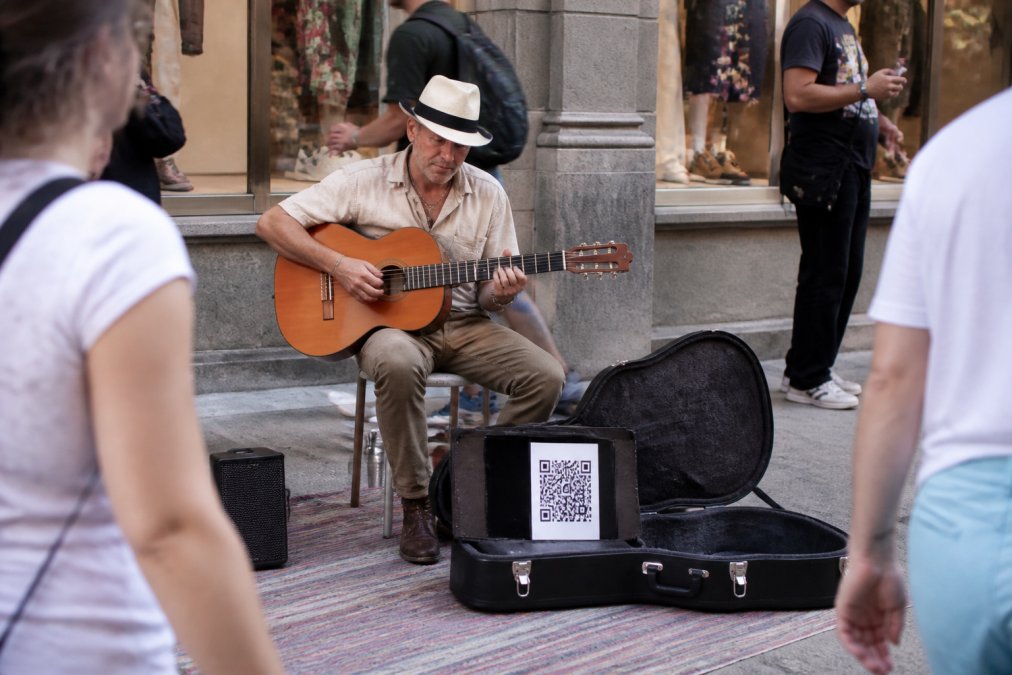
Illustration of a street performer with a QR display beside an instrument case.
Write an Instruction That Matches the Action
People should understand the sign without asking you to explain it mid-song. Put your artist name next to the code and use a short instruction:
- For a support QR: “Scan to support [Artist Name].”
- For a music profile: “Scan to find my music.”
- For Halo Pulse: “Tap the puck with your phone or scan the QR code to support [Artist Name].”
A QR code is scanned with a camera; the NFC access point is tapped with a compatible smartphone. Naming the action clearly helps supporters understand what to do.
Include a readable web address as a fallback, and make support feel like an invitation. One brief mention during a natural pause is enough to explain that the option is there.
Manage Low Light, Glare and Weather
If a code will not scan, check several factors together: lighting, reflections, contrast, size, distance, angle and print condition. Better lighting cannot always compensate for a code that is too small or partly obscured.
For an evening performance, aim for even illumination across the display. Avoid deep shadows and bright reflections. If you use a small light, test its position with a phone camera rather than assuming the sign looks readable because you can see it.
A protective sleeve or laminate can help keep paper dry, but glossy surfaces may reflect stage or street lighting. Test the final cover and tilt the sign if needed. Keep the code flat, clean and free of condensation or water droplets.
Phone scanning methods vary. Apple documents scanning with the iPhone Camera app or Code Scanner. On other phones, the available camera or scanner features depend on the device and settings. A clearly printed web address gives people another route if scanning does not work.
Combine QR and NFC Without Confusing Supporters
QR and NFC can provide two ways to reach the same destination. With My Fedora, supporters scan the official support QR or tap Halo Pulse with a compatible smartphone to open the artist’s online support checkout.
Halo Pulse is a smartphone NFC/QR tap-to-support access point, not a bank-card reader or EFTPOS terminal. It does not store card details or create or queue offline transactions. The supporter’s phone needs internet access to load checkout and complete payment; mobile data can provide that connection without venue Wi-Fi.
My Fedora deducts 0% from the amount selected for artist support. Ordinary payment-provider fees may apply. Any additional contribution to My Fedora is optional and unchecked by default.
If your pitch has unreliable mobile coverage, keep a readable artist address on the display so people can visit later. A saved link or photograph of the code is a fallback, not a completed payment.
Test the Complete Journey Before Performing
- Use the finished display. Test the actual print inside its holder or protective cover.
- Position it at the pitch. Check the viewing distance, approach and lighting people will encounter.
- Try more than one phone where possible. Check both the scan and any NFC option separately.
- Open the destination as a visitor. Confirm the correct artist and page appear without relying on your own signed-in artist session.
- Check the checkout. Make sure it loads on mobile and that the payment connection is ready. If you run a small test payment, verify it in your provider’s transaction records.
- Check the fallback address. Type it manually and confirm that it reaches the intended page.
- Repeat after changes. Recheck whenever you replace the code, change its destination, move the sign or perform under different lighting.
Before each set, take a quick look for damage, stickers placed over the code or anything blocking the display. A scan test takes little time and can reveal a problem before a supporter encounters it.
Make Supporting Your Performance Easy
The strongest display gives people a clear invitation and a working route to your checkout. Start with a clean QR code, a visible artist name and a well-tested position. Add NFC if it suits your setup.
My Fedora’s official support QR connects supporters directly to your online checkout, while Halo Pulse offers an optional smartphone tap route. Keep your artist profile ready for people who want to explore your work after the set.
Get your My Fedora support QR and prepare a display for your next performance.
Frequently Asked Questions
Where should I put a QR code at a live performance?
Place it in a clear sightline where supporters can approach comfortably without entering your performance space or blocking a walkway. Check the view from standing and seated positions where relevant, and keep the sign stable and upright.
How big should a QR code be on a performance sign?
There is no universal size. Viewing distance, pattern density, print quality, lighting and phone cameras all affect scanning. Give the code generous space, preserve its clear border and test the final print from the audience’s actual position.
How much empty space does a QR code need around it?
DENSO WAVE specifies a quiet zone four modules wide on every side of a standard QR code. A module is one small square in the pattern. Keep text, frames and artwork outside this border.
How can I make a QR code easier to scan in low light?
Use a clean, high-contrast print and even lighting without bright reflections. Check the code’s size, viewing angle and distance too. Test with a phone camera under the same lighting you expect during the performance.
Can I laminate a QR-code sign?
A protective cover can help keep the print dry, but glossy material may reflect light and interfere with scanning. Test the finished display inside its cover and adjust its position or angle if there is glare.
Do supporters need an app to scan a QR code?
Many phones have a QR-scanning feature in their camera or a built-in scanner. The exact method depends on the device and settings. Include a readable web address for people who cannot scan, and remember that online checkout needs internet access.
Should my support QR open my profile or checkout?
Match the destination to the sign. A support invitation should lead to support checkout, while a music or follow invitation can lead to an artist profile. My Fedora’s official support QR opens the artist’s online support checkout directly.
Can supporters tap a bank card on Halo Pulse?
No. Halo Pulse is a smartphone NFC/QR access point, not a bank-card reader. A compatible smartphone tap, or a QR scan, opens the artist’s online support checkout.
Will a My Fedora support QR or Halo Pulse work without internet?
The supporter’s phone needs internet access to load checkout and complete payment. Mobile data can work without venue Wi-Fi. Halo Pulse does not store card details or create or queue offline transactions.
Does My Fedora take a percentage of artist support?
My Fedora deducts 0% from the selected artist-support amount. Ordinary payment-provider fees may apply. An additional contribution to My Fedora is optional and unchecked by default.