 how-to
How to Test Your Busking Payment Setup Before a Gig
A payment setup is ready for a gig when a supporter can reach the correct checkout, understand the choices and complete a payment that appears in the provider’s records. A QR scan or NFC notification alone cannot prove all of that.
Use this busking payment checklist when you first set up digital support, after changing your payment connection, and for a short check before each performance. The aim is to catch problems while you have time to fix them.
Understand the four stages you are testing
Stage | What a successful check shows | What it does not prove |
|---|---|---|
Scan or tap | The phone reads the QR code or NFC link. | The checkout has loaded or money has moved. |
Checkout | The correct artist, amounts and available payment options appear. | A payment has completed. |
Payment confirmation | The provider records a successful payment. | The money has already reached your bank. |
Payout | The provider transfers funds according to its payout process. | Every later payment will follow an identical timetable. |
Keeping these stages separate makes troubleshooting easier. If a phone reads the link but the page does not load, start with connectivity and the destination. If a payment is completed but your bank balance has not changed, look at payouts.
1. Open your checkout as a supporter
Test the exact printed QR code and NFC accessory you will take to the gig. Use another phone, or a browser session that is not signed into your artist account, so you can see the public experience.
- Confirm your artist name is correct.
- Check that the destination is your support checkout.
- Make sure the page is usable on a phone without sideways scrolling.
- Check the amounts and currency.
- Follow the flow far enough to see the available payment options.
If you recently changed a username, payment connection or link destination, repeat this check on every sign and accessory. Do not assume an older printed code or programmed tag has changed with it.
2. Test QR and NFC separately
QR check
Scan the physical copy from a comfortable standing position. On iPhone, Apple describes using Camera in Photo mode, placing the code in view and tapping the link that appears. See Apple’s QR scanning instructions.
If recognition fails, clean the lens, hold the phone steady and check for glare, damage or an obstructed code. Compare the printed copy with the original image. If the original works but the print does not, investigate the print before changing the checkout.
For sign design and placement, use our QR display guide. This checklist focuses on whether the payment journey works.
NFC check
Use a compatible smartphone, follow its manufacturer’s instructions and hold the NFC reading area near the access point. Follow the link notification to checkout.
Apple’s background NFC guidance notes that supported iPhones can show a notification when they read a tag, but background reading is unavailable during some activities, including use of the camera or Apple Pay. Close those activities before testing the NFC link again.
On other phones, check NFC support and settings using the manufacturer’s guidance. Keep the QR code available for people whose phones cannot read the tag or who prefer scanning.
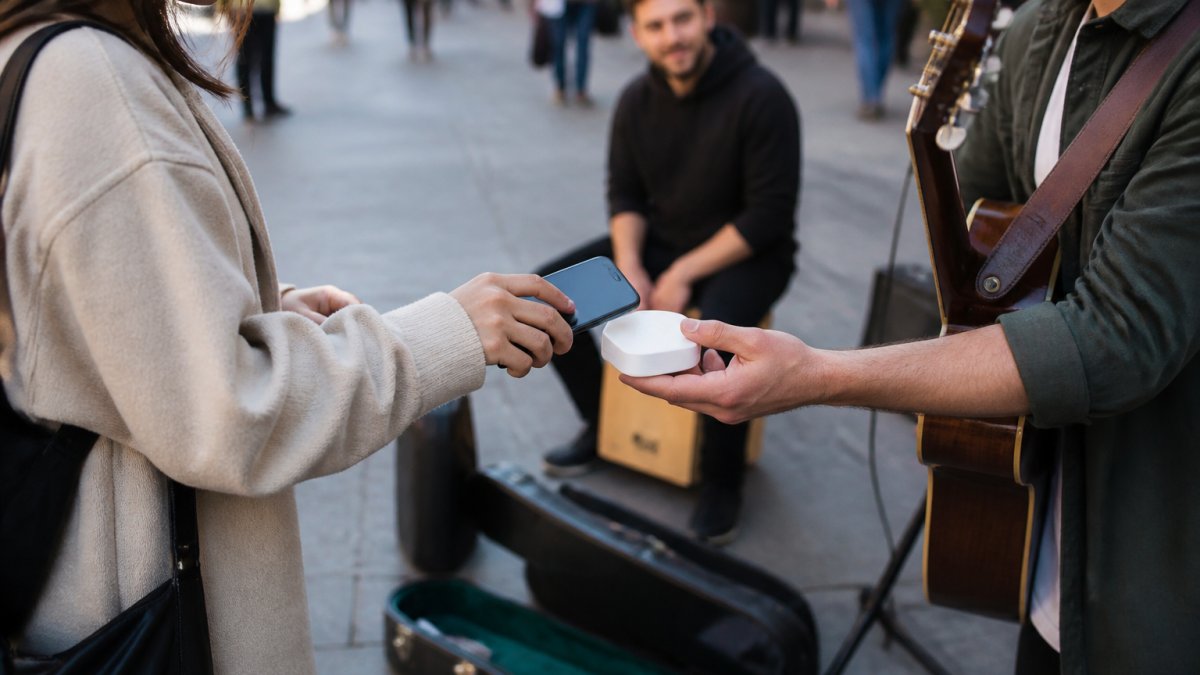
With Halo Pulse, supporters use their smartphone to open the artist’s online support checkout. They do not tap a bank card against the puck. The NFC interaction opens the link; the supporter still completes payment on their phone.
3. Check mobile data at your performance spot
A successful test on home Wi-Fi does not establish that checkout will load at your pitch. Before the set, open it using mobile data at the actual location. If practical, test with a second phone or network too.
The supporter’s phone needs internet access for a My Fedora checkout. You do not have to supply Wi-Fi, but the phone must be able to connect through mobile data or another available network.
Halo Pulse does not store card details, create offline payments or queue transactions to process later. If coverage is unavailable, offer a cash option or let people save your link for later. Treat a saved link as a possible future contribution, not a completed payment.
4. Review the amount and optional choices
Choose an amount and read the checkout as someone seeing it for the first time. Confirm the final total and look for controls that might be hidden below the visible part of a small screen.
For My Fedora, any additional supporter contribution must remain optional and unchecked. Check that declining it still lets the supporter continue. My Fedora deducts 0% from the selected artist-support amount; ordinary payment-provider fees may apply.
Payment options can depend on the connected provider, device and browser. Do not promise that every supporter will see the same mobile-wallet buttons. Confirm the methods actually shown on the devices you test.
5. Verify a completed payment when setup changes
After initial setup or a significant payment-account change, verify the full journey through a legitimate payment in line with the provider’s testing rules. A real payment may incur a processing fee; check refund terms before treating repeated paid tests as cost-free.
Record the amount, approximate time and any transaction reference. Check the provider’s records for the outcome. Do not rely solely on a banking screenshot, a loading spinner or a page that says the checkout opened.
If a page freezes after submission, check the transaction status before trying again. That avoids charging twice when the first payment succeeded but the page did not update.
6. Separate payment problems from payout delays
A completed payment may sit in your provider balance before being transferred to your bank. Check the transfer record and account notices before concluding that a tip is missing.
Square’s Australian guidance on missing transfers starts by checking that the expected payments have completed and reviewing transfer details. Follow your own provider’s instructions, since account requirements and payout arrangements vary.
If you need help, provide the amount, time, payment reference and exact error message through the provider’s official support channel. Never ask a supporter to send their full card number or security code.
A quick check before every set
- Scan the sign and confirm the correct artist checkout opens.
- If you use Halo Pulse, test its smartphone NFC link separately.
- Check that checkout loads on mobile data at the pitch.
- Inspect your display for damage, obstruction or an unfamiliar sticker placed over the code.
- Confirm the connected payment account has no unresolved action requests.
- Keep a fallback available and know how to check transaction status.
You do not need to make a paid test before every song or session. Repeat the full payment check when you first set up, after meaningful changes, or when there is evidence of a problem.
Troubleshooting at a glance
Problem | First check |
|---|---|
QR will not scan | Compare the printed code with the original; check glare, lens and damage. |
NFC produces no prompt | Check phone compatibility, NFC settings and reading position; try QR. |
Link opens but checkout does not load | Check internet access and the destination URL. |
Checkout shows the wrong artist | Stop using that code or tag until its destination is corrected. |
A wallet button is absent | Check the provider, browser and device requirements; use another available method. |
Payment outcome is unclear | Check provider records before retrying. |
Completed payment is not in the bank | Review provider balance, payout status and account notices. |
Make the payment check part of your sound check
A short routine helps you notice a broken link or incomplete account setup before a supporter does. Once the journey is working, you can focus on the performance.
Create your My Fedora artist profile, set up your support checkout and test your QR code before your next gig. Halo Pulse offers an optional smartphone NFC route to the same online checkout. The supporter’s phone needs internet, and ordinary payment-provider fees may apply.
Frequently Asked Questions
Is scanning my QR code enough to prove payments work?
No. Scanning checks the link; loading checkout checks another part of the journey. Confirm that the connected payment provider is ready and verify a legitimate completed payment after initial setup or a significant change.
Why does my QR code work but my NFC tap does not?
The two methods use different phone features. NFC depends on the phone’s compatibility, settings, position and current activity. Use the QR code as an alternative while you check the phone manufacturer’s instructions.
Does Halo Pulse need the supporter’s phone to be online?
Yes. Halo Pulse opens the artist’s online support checkout through smartphone NFC or QR. The supporter’s phone needs internet access to complete payment. Halo Pulse does not store card details or queue offline transactions.
Should I retry a payment if the checkout seems stuck?
Check the provider’s transaction record before trying again. A page failing to update does not prove that no payment was taken. If the outcome is unclear, contact the provider with the transaction details rather than repeatedly submitting it.
Why has a completed tip not reached my bank yet?
Payment completion and bank payout are separate stages. Check your provider balance, transfer status, payout schedule and any account-verification requests. Avoid assuming the supporter needs to pay again.
Does My Fedora deduct a platform percentage from tips?
My Fedora deducts 0% from the selected artist-support amount. Ordinary payment-provider fees may apply. Any additional supporter contribution is optional and unchecked.