 ultimate-guide
Accepting Payments as a Street Performer: 2026 Guide
Updated 19 October 2026
Accepting payments as a street performer starts with choosing how supporters will give: cash, an online checkout reached by QR or smartphone NFC, or a genuine card-acceptance service. You can combine methods, but each needs a clear instruction and a tested setup.
For a performer who wants a simple digital starting point, a printed support QR is worth trying. It lets supporters use their own phones while you perform. A card reader may suit people who prefer presenting a physical card, while cash remains useful when reception or phone batteries fail. No single option covers every situation.
Compare the main street performer payment options
Method | What the supporter does | Main requirement | What to budget for |
|---|---|---|---|
Cash | Places notes or coins in your collection point. | A visible, secure place to give. | Safe handling and manual counting. |
Printed QR and online checkout | Scans, opens checkout, chooses an amount and completes payment. | The supporter's phone and internet access; a working payment account. | Printing and any applicable platform or processing charges. |
Smartphone NFC link, such as Halo Pulse | Taps a compatible phone to open the link, then completes online checkout; QR provides another route. | A compatible phone with internet access for checkout. | Optional access-point hardware plus applicable payment fees. |
Card acceptance | Presents a supported bank card or mobile wallet to the reader or eligible merchant phone. | A supported device, provider account and the connection required by that service. | Hardware or rental where applicable, plus processing and any account fees. |
A QR code and a smartphone NFC link are entrances to an online checkout. A card reader communicates with a card or wallet as part of the provider's payment process. Neither an NFC link opening nor a terminal displaying a collected offline transaction should be confused with guaranteed funds in your bank.
1. Set up a QR checkout before printing your sign
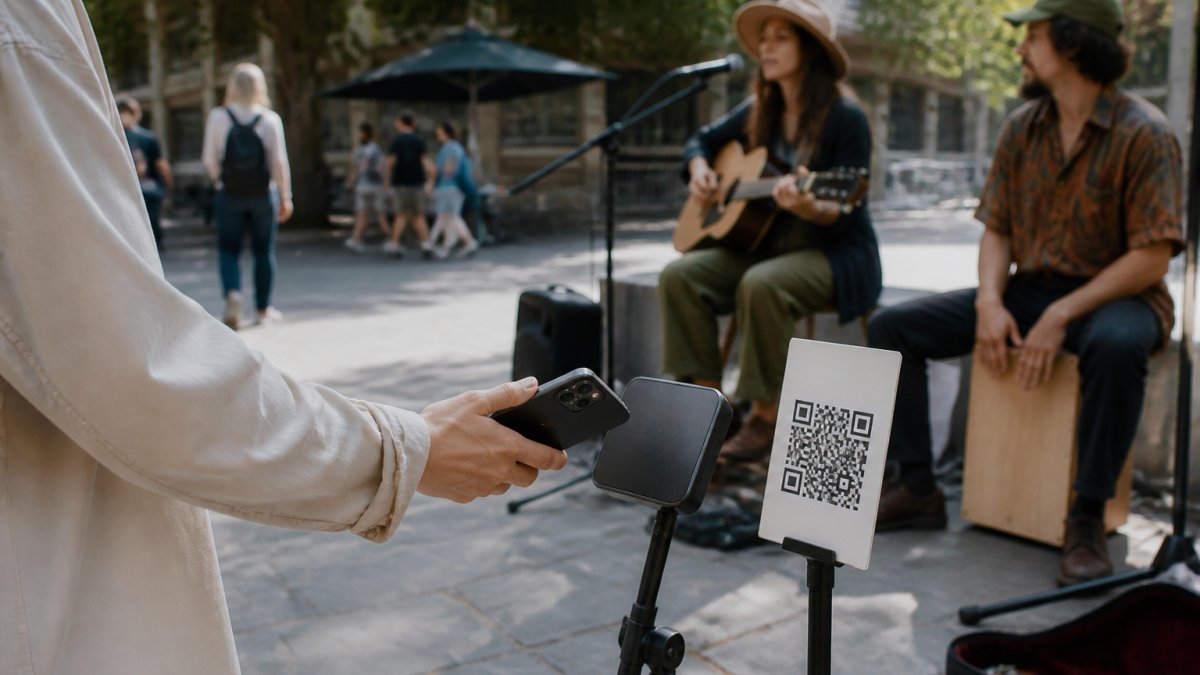
Choose a service available to you and complete the required account and payment-provider setup. Check that the correct artist name, currency and amount choices appear. Download the QR from the intended account and scan it before printing multiple copies.
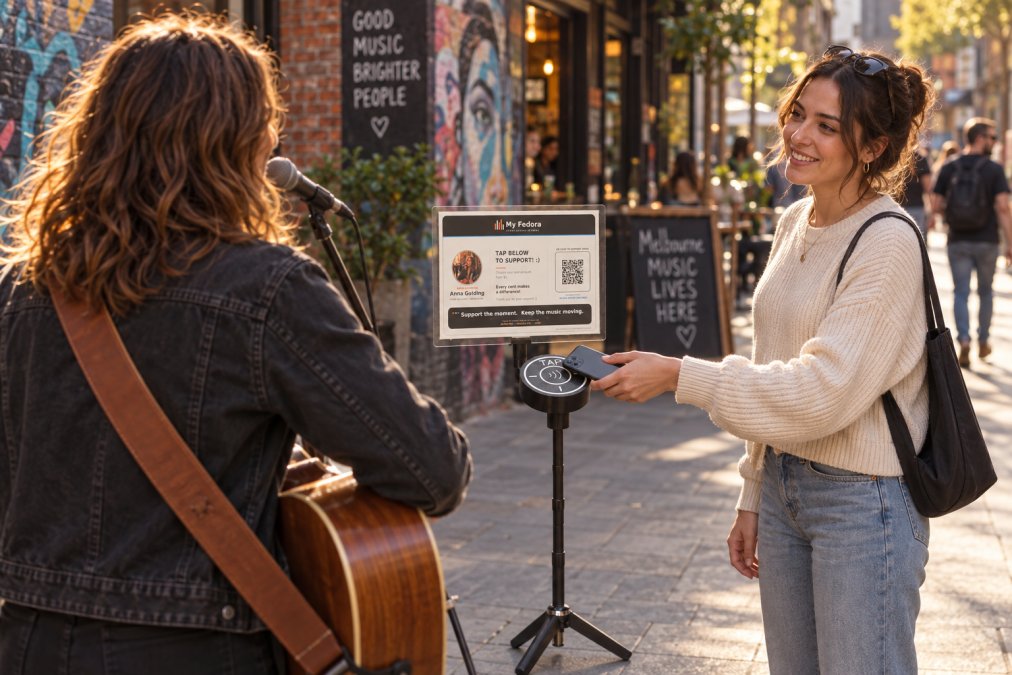
With My Fedora, a free account provides a downloadable support QR. The QR can be downloaded before payment setup is complete, but receiving support requires the payment connection to be ready. The code opens the artist's support checkout directly.
A printed QR itself needs no charging or pairing. The supporter's phone still needs a camera or scanning capability, a usable internet connection and an available way to pay. Printing and protective materials can cost money even when the QR download is free.
Use a high-contrast print with clear space around the code. Test the finished sign in daylight and at the intended distance. If it sits behind a sleeve, check for reflections. Keep a spare and replace damaged or obscured prints.
2. Decide whether a smartphone tap point helps your display
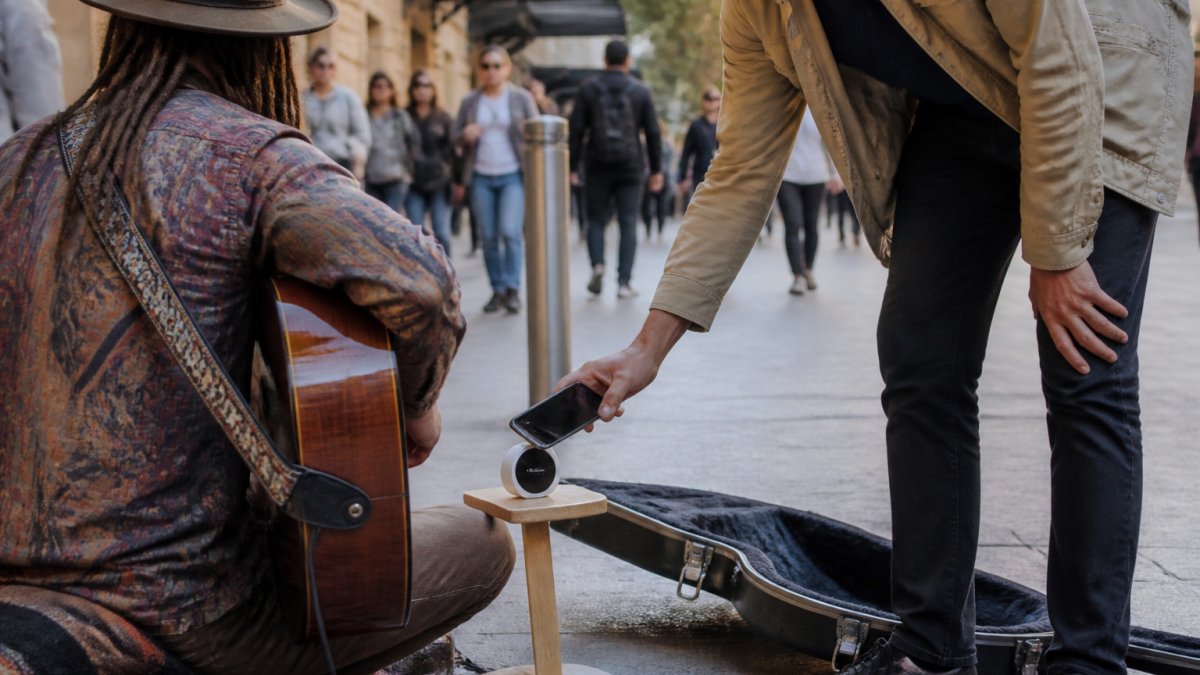
Halo Pulse offers a physical NFC/QR access point for supporters who prefer to open the link with a compatible smartphone tap. It leads to the same online checkout journey: choose an amount, review the payment and complete it.
Make the instruction explicit: “Tap your phone to open the link, or scan the QR.” A generic “tap to pay” sign can be confusing when someone expects to tap a debit card.
- Halo Pulse is not a bank-card reader or EFTPOS terminal.
- It does not store card details or authorise payments by itself.
- It does not create, store or queue offline payment transactions.
- The supporter's phone needs internet access to complete checkout.
NFC is an additional way to reach the page, not a promise of faster payment or more tips. Keep the QR visible for people whose phone or preferences make scanning easier.
3. Consider direct card acceptance when you need it
A card-acceptance setup can serve supporters who have a bank card but do not want to open an online checkout. Depending on the provider, you might use a standalone terminal, a reader paired with your phone, or an eligible phone running a supported Tap to Pay service.
For example, Square documents Tap to Pay on compatible Android phones in Australia. Compatibility depends on the device, app and country. This is card acceptance through Square; it is different from tapping a smartphone on Halo Pulse to open a web link.
Before choosing a product, check the current hardware requirements, supported payment methods, connectivity, battery needs and fees. Some arrangements involve buying hardware, some involve rental, and some use an existing compatible phone. Do not assume every card setup has a monthly terminal rental.
Think about how you will operate it mid-performance. A staffed merchandise table and a solo musician in the middle of a song have different needs. Confirm any unattended-use requirements with the provider before leaving a payment device for supporters to operate themselves.
4. Plan for poor reception
No Wi-Fi does not necessarily mean no internet. A supporter with mobile data can complete an online checkout without joining a venue network. If their phone has no usable connection, scanning a QR or opening an NFC link cannot complete the online payment.
Some dedicated card systems have offline collection features. Square's Australian offline-payment guidance says supported transactions are stored for processing after reconnection, with hardware restrictions and upload deadlines. It excludes Tap to Pay on iPhone and Android from offline payments and makes the seller responsible for expired, declined or disputed offline transactions.
Check your particular device and provider before relying on this capability. Offline collection is not guaranteed authorisation, and it is not a Halo Pulse feature.
Keep a practical fallback: cash, a different permitted pitch with reception, or a readable link someone can revisit later. A photographed QR or a promise to pay later is not a completed payment.
5. Understand fees and payout timing
Compare the total arrangement, not just the largest number in the advertising. Look for account subscriptions, platform deductions, payment processing, hardware, and any applicable payout or currency-conversion charges.
My Fedora deducts 0% from the selected artist-support amount. Ordinary payment-provider fees may apply. Any additional supporter contribution to My Fedora is optional and unchecked by default. This does not promise a fee-free transaction or an identical net payout across providers and payment methods.
Review the final total shown to supporters and the records available to you. Keep three stages distinct:
- Checkout opened: someone reached the page.
- Payment confirmed: the provider records the transaction as successful.
- Bank payout: available funds are transferred according to the provider's arrangements.
Do not treat a scan, a screenshot or an estimated payout date as proof of all three. Check the provider's own records for the transaction status and payout details.
6. Make the sign easy to understand
Give each method an accurate instruction. Use “Scan to support” for a printed QR, the smartphone instruction for Halo Pulse, and card wording only for an actual card-acceptance setup.
Place the sign where people can see and reach it without stepping into your act or obstructing a public route. Include your artist name so the sign and checkout are easy to associate with you. Avoid cluttering the display with several unexplained codes.
A short invitation between pieces is enough: “Thanks for listening. If you'd like to support the set, you can scan the code here.” Keep giving voluntary and avoid putting individuals on the spot.
Inspect your display regularly for damage or replacement stickers, and check that the destination is still correct. Secure cash and equipment, especially during pack-down.
7. Test the full journey, then keep checks simple
- Finish onboarding. Confirm the payment provider is connected and required account steps are complete.
- Use the finished display. Scan the actual print or tap the installed access point.
- Check the destination. Confirm the artist, currency, amount options and payment choices.
- Complete a small permitted live test. Verify the provider's transaction record and understand any test-payment fees.
- Check real conditions. Try mobile data at the pitch, and another compatible phone where practical.
- Review payout setup. Confirm the destination and expected process in the provider account.
Repeat the full test after relevant account or link changes. Before ordinary sessions, a quick destination, connection and sign check may be enough; daily paid test transactions are not a requirement. Our payment setup test guide covers the process in more detail.
Match the setup to your performance
Starting out: try a clear QR sign and a secure cash option, then see what supporters actually need. Complete the payment setup before displaying the code as ready to receive support.
Performing regularly: consider whether a smartphone tap point makes the display easier to use. Keep the QR available and assess actual completed support rather than assuming extra hardware pays for itself.
Selling merchandise: choose a suitable sales checkout or point-of-sale arrangement with the item, price and receipt workflow you need. Keep voluntary artist support clearly separate from a purchase.
Ready to add digital support? Create your free My Fedora account and download your QR. Complete the required payment setup, test the checkout and display one clear invitation at your next performance.
Frequently Asked Questions
How can street performers accept payments?
You can combine cash, an online checkout reached by QR or smartphone NFC, and genuine card acceptance through a supported provider. Choose methods that fit your act, account eligibility and reception, then test them before performing.
Can I receive support as soon as I download my My Fedora QR?
The QR can be downloaded through a free account, but you must complete the required payment-provider setup before receiving online support. Scan the finished sign and verify the checkout before advertising it as ready.
Do supporters need Wi-Fi to use a support QR?
They need internet access, but it can be mobile data rather than Wi-Fi. If their phone has no usable connection, the online checkout cannot be completed at that moment.
Can a supporter tap a bank card on Halo Pulse?
No. Halo Pulse is a smartphone NFC/QR access point that opens the artist’s online checkout. It stores no card details and does not create or queue offline transactions. The supporter completes payment on an internet-connected phone.
Do I need to rent a card terminal to accept cards?
Not necessarily. Providers may offer purchased readers, rented terminals or card acceptance through a compatible phone and app. Check the current requirements and fees for your chosen service and country. These services are distinct from Halo Pulse.
What fees apply to My Fedora artist support?
My Fedora deducts 0% from the selected artist-support amount. Ordinary payment-provider fees may apply. Any additional supporter contribution to My Fedora is optional and unchecked by default.
Are offline card payments guaranteed?
No. Supported offline card systems can submit collected transactions after reconnection, but payments may fail or expire. Follow the provider’s hardware rules and upload deadlines. Halo Pulse does not offer offline payment collection.