 blog
blog
Professional Artist Link in Bio: What to Include
Updated 21 October 2026
A professional artist link in bio gives someone one clear place to discover your work, find your current links and take the next step. For a musician, that might mean hearing a recording, following your work, checking a confirmed performance or sending support.
You do not need to include every platform you have joined. Start with the information a new listener needs, put your current priority near the top and make every button describe where it leads. Here are eight useful elements to include, followed by a sample layout and a mobile checklist.
1. Your artist name and a recognisable image
Use the same artist name that appears on your performance sign and main social accounts. A listener who has just seen you play should be able to recognise that they have reached the right page.
Choose a clear portrait, performance photo or suitable artwork. Preview the actual crop on a phone: a wide stage photograph can become difficult to recognise when reduced to a small circle. Use images you have permission to publish.
2. A short biography that gives useful context
Describe your act in plain language. Your instrument or discipline, musical style and general location can help someone understand what you do. A short description is a starting point, not a rule that every artist must fit into the same number of words.
For example: “Alex River is a Melbourne acoustic guitarist playing folk originals and fingerstyle arrangements. Listen to the latest live session below.” This is a fictional example, not a real artist testimonial.
A label such as “singer-songwriter” is fine, but adding one specific detail gives it more context. Avoid invented awards, exaggerated popularity claims or a long career history before the visitor can reach your work.
3. One clearly prioritised next step
Decide what matters most right now. If you have released a recording, lead with that. If you are announcing a booked show, lead with the event information. If the page is primarily for people supporting a street performance, give that action a clear label.
Useful labels include “Listen to my live session,” “See upcoming performances,” “Support my music” and “Booking enquiries.” A row of identical “Click here” buttons makes the visitor guess.
You can still offer several links. Prioritising one means giving the page a clear order; it does not mean hiding everything else or assuming every visitor has the same goal.
4. A small selection of your work
Give a new visitor an easy introduction to what you make. For musicians, that could be one live video or a main listening destination. For other performers, use a short showreel, portfolio or representative piece.
Tell people what they will open. “Watch a two-minute street performance” gives more context than an unexplained video icon. Check whether the destination can be previewed without an account, and whether it opens an external app.
Avoid forcing audio to play as soon as the page loads. Let the visitor choose to listen, particularly when they may be opening the page in a public place.
5. Current performance information
Include confirmed public dates if you have them, using the date, location, relevant start time and a link to further details. If you share tentative street sessions, make their weather or location uncertainty clear.
Remove or archive past dates so they do not look like upcoming events. If nothing is booked, you can omit the section and link to the channel where you announce future appearances. There is no need to fill space with an outdated gig.
Use whatever event fields or external links your chosen page supports. A public gig listing is not the same as a booking calendar or a reserved busking pitch. Our weekly busking schedule guide explains how to keep the working plan and public updates aligned.
6. A clear way to support your work
If you accept online support, label the destination so the visitor knows they are entering a payment journey. Do not imply that opening the page, following your account or watching a performance obliges someone to pay.
With My Fedora, the artist profile brings together your story, work and social links. The support checkout is a separate destination where the supporter chooses an amount and completes payment.
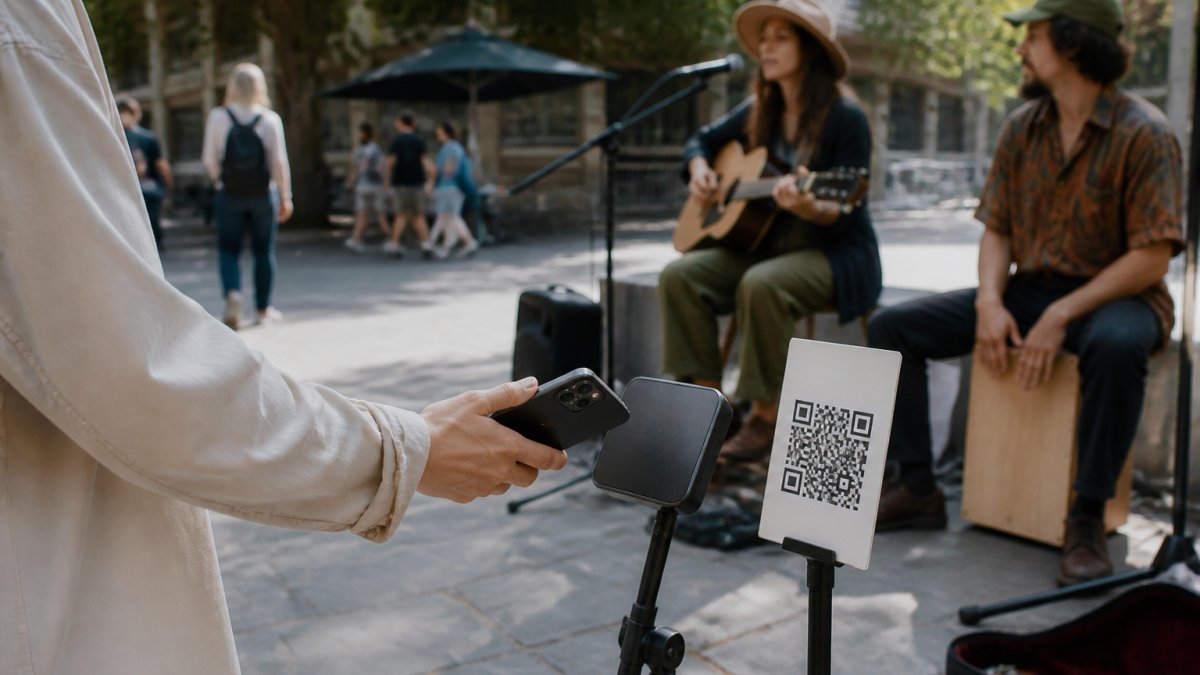
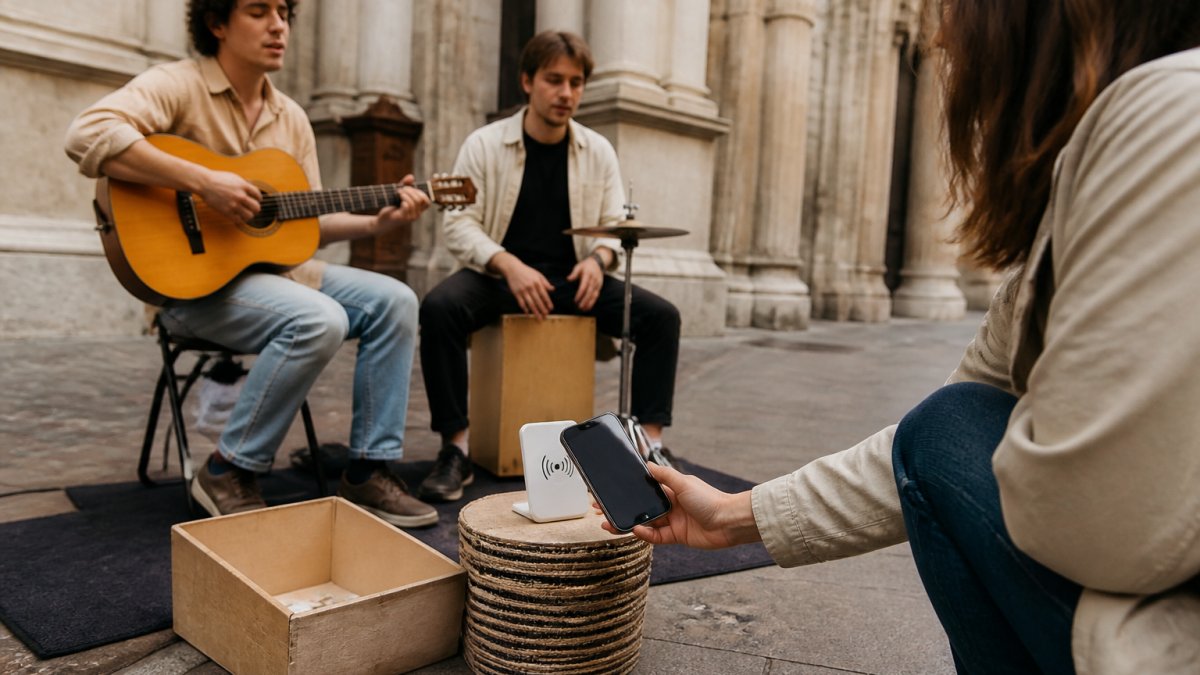
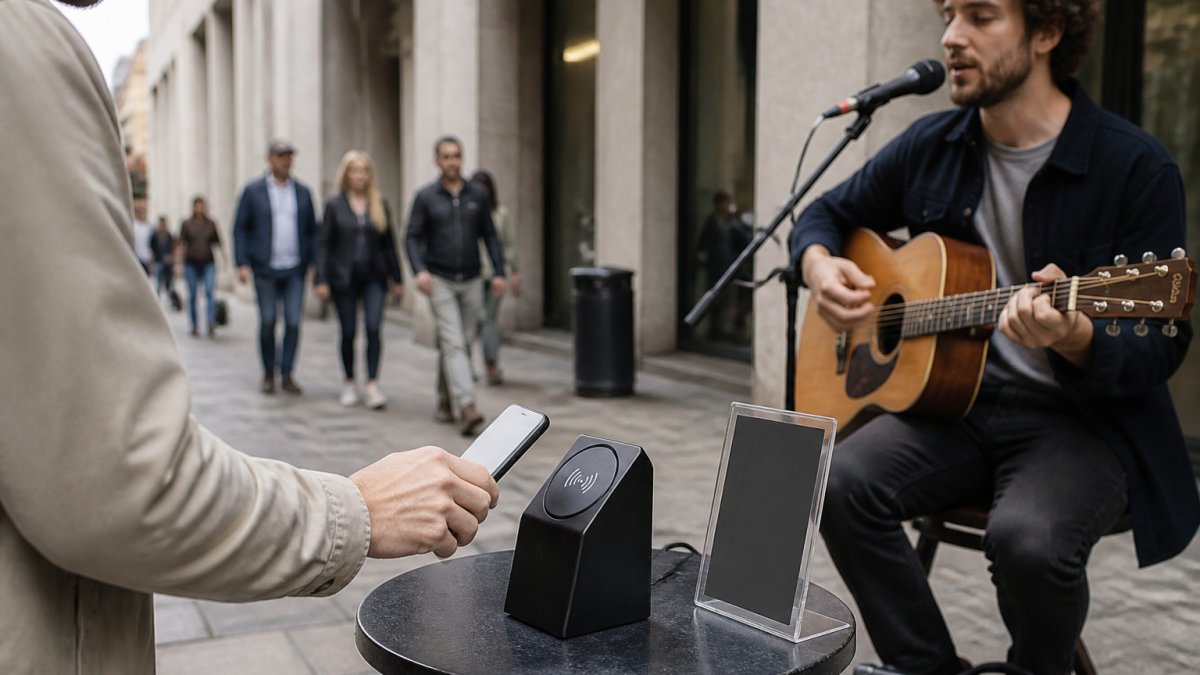
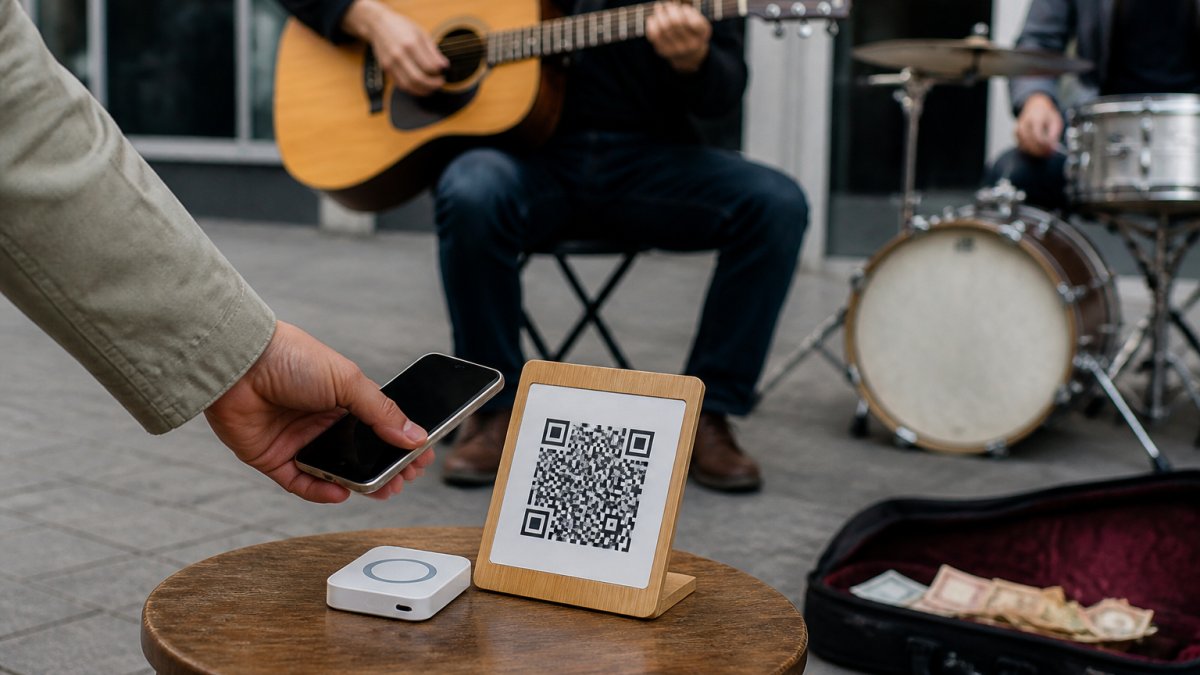
Your official support QR opens the checkout directly. Halo Pulse offers an optional smartphone NFC/QR access point to that same checkout. It is not a bank-card reader: supporters use a compatible smartphone to open the link and complete the payment online.
The supporter's phone needs internet access, which can be mobile data. Halo Pulse stores no card details and does not create or queue offline transactions. A tap or scan that opens the link is not proof that a payment has completed.
My Fedora deducts 0% from the selected artist-support amount. Ordinary payment-provider fees may apply. Any additional supporter contribution to My Fedora is optional and unchecked by default.
7. Social links you want people to visit
Choose the accounts that best represent your current work. You do not have to post weekly everywhere; a less frequently updated archive may still be useful if it contains relevant work. Remove broken links and accounts you no longer want to promote.
Use recognisable platform names or descriptive labels, and keep the handles consistent where practical. Avoid repeating the same destination in several buttons unless it serves a clear purpose.
8. A route for booking enquiries
Make it easy for an organiser to contact you through a business email, contact form or booking page you are comfortable making public. Keep private personal details off the page unless you deliberately want to share them.
If you use a form, test the submission and check where the message arrives. If you link to an email address, try it from a phone. A visible “Bookings” button is only useful if the route behind it works.
A sample artist link-in-bio layout
This is a suggested information order, not a claim that every profile service has identical fields or button controls. Adapt it to your platform and current priority.
Position | Example content | Purpose |
|---|---|---|
Top | Artist name, clear photo and short description. | Confirm who the visitor has found. |
First action | “Listen to my latest live session.” | Highlight the current priority. |
Next section | Confirmed performance information, if relevant. | Help people find you again. |
Support link | “Support my music.” | Offer a clearly labelled, voluntary payment route. |
Further links | Selected social accounts and booking contact. | Give interested visitors a way to continue. |
Test the page on a phone before sharing it
Open the public page as a visitor rather than relying on the logged-in editor preview. Use mobile data as well as Wi-Fi, and try another phone where practical.
- Can you read the artist name and introduction without zooming?
- Are buttons large enough and sufficiently separated to tap comfortably?
- Does each link describe its destination?
- Do images, recordings and links load correctly?
- Can a visitor identify any account or app requirement before being surprised by it?
- Are dates current and the booking route working?
- Does the support link show the correct artist and a working checkout?
W3C's guidance on target size explains why adequate control size and spacing help people activate the intended button. Its informative-image guidance also explains how meaningful text alternatives convey information supplied visually. Use your page builder's accessibility settings where available.
Check loading behaviour on a real mobile connection. Large images and unnecessary embeds can make a page harder to use, but a single universal loading-time promise does not account for every device or network.
Send each QR code to the intended destination
A social bio link can lead to your artist profile so visitors can explore. A support sign should make its payment destination clear. If you create a separate profile QR, label it “Find my music and links” rather than presenting it as the direct support code.
Test the finished print at its intended distance and in outdoor light. Check it again after changing destinations or replacing signs. Keep your artist profile current as recordings, public dates and contact details change.
For a practical starting point, create your free My Fedora account and download your support QR. Complete the required payment setup before accepting support, then build your artist profile with the information you want listeners to discover. Our digital profile guide can help you prepare the content.
Frequently Asked Questions
What should a musician put in their link in bio?
Include your artist name, a short description, selected work and a clearly prioritised next step. Add relevant public dates, social links, a voluntary support option and a booking contact where useful. Keep the content current rather than listing every account you have.
Should my artist profile and support QR open the same page?
They serve different purposes. A profile helps people explore your work and links. My Fedora’s official support QR and Halo Pulse smartphone NFC link open the online support checkout directly. Halo Pulse is not a bank-card reader, stores no card details and does not queue offline payments. The supporter’s phone needs internet access.
How do I make an artist link-in-bio page easier to use on mobile?
Test the public page on a phone with mobile data. Use readable text, descriptive labels and comfortably sized, separated buttons. Check image crops, all destinations and any account requirements. Keep dates and contact routes current, and provide meaningful image alternatives where the page builder supports them.