 how-to
How to Set Up NFC Tap Payments for Street Performers
Table of Contents
- What Does “NFC Tap Payment” Mean?
- Choose the Right Type of NFC Setup
- How to Set Up an NFC Tap-to-Support Link
- How to Set Up Genuine NFC Card Acceptance
- How Halo Pulse Works
- Where to Position Your NFC Setup
- Common NFC Setup Mistakes
- Pre-Performance Checklist
- Frequently Asked Questions
Last Updated: September 27, 2026
What Does “NFC Tap Payment” Mean?
NFC, or near field communication, is a short-range wireless technology that lets compatible devices exchange information when they are brought close together. The NFC Forum describes it as communication over a few centimetres, but “tap payment” can refer to two very different journeys.
One journey uses a smartphone-readable NFC link. The tap opens an artist's online checkout on the supporter's phone. The other uses an approved payment app or terminal to read a contactless bank card or mobile wallet.
That distinction matters. A link-based access point is simple and useful, but it is not a card reader. Genuine card acceptance requires a supported payment provider, merchant onboarding and compatible software or hardware.
Choose the Right Type of NFC Setup
NFC Tap-to-Support Link
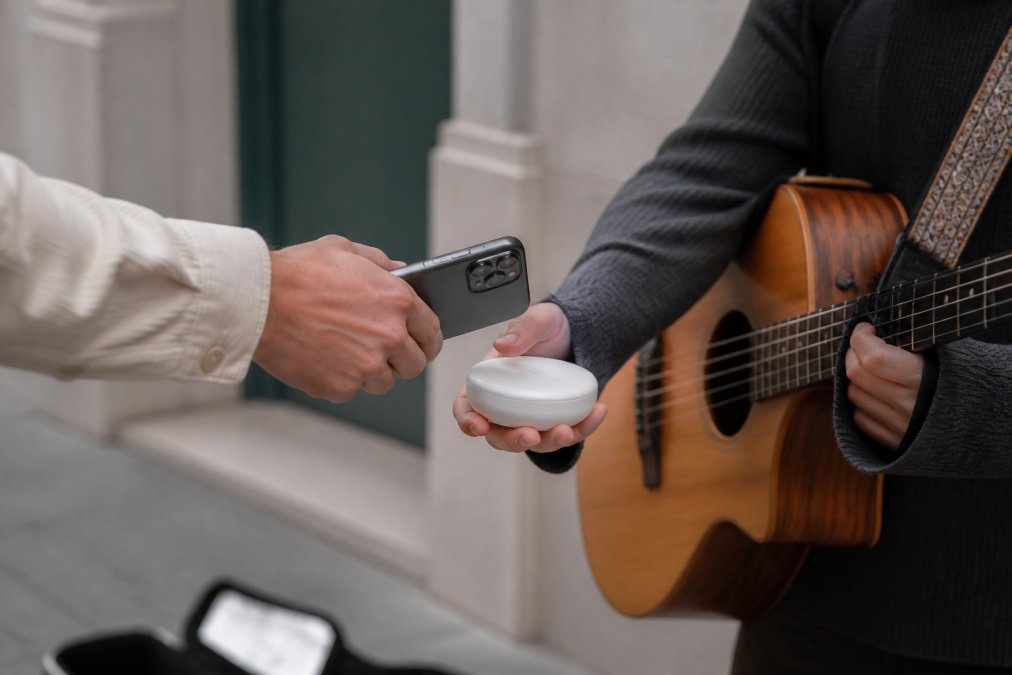
A tap-to-support access point holds or presents a web address. A supporter taps it with a compatible smartphone, follows the on-screen prompt and opens the artist's checkout. They choose an amount and complete payment online.
This approach does not require the performer to handle a bank card, pair a card reader or interrupt a set. It works well alongside a QR code because both routes can lead to the same artist page.
The supporter's phone still needs internet access. The NFC access point does not read bank cards, store card details, authorise a payment or queue a transaction for later.
NFC Card Acceptance
Genuine NFC card acceptance lets a merchant receive a contactless card or mobile-wallet payment. It may use a dedicated terminal or a provider-supported Tap to Pay app on a compatible phone.
Apple states that Tap to Pay on iPhone requires a supported payment app and payment service provider. It can accept supported contactless cards and digital wallets without an extra terminal. Availability depends on the country, provider, device and operating system. See https://developer.apple.com/tap-to-pay/how-to-accept-payments/.
Android-based card acceptance is also provider-specific. Do not assume that an NFC-equipped Android phone can accept payments merely because it can make them through Google Wallet.
How to Set Up an NFC Tap-to-Support Link
1. Create the Destination Page
Start with the page the supporter should see after tapping. It should clearly identify the artist, load quickly on mobile and provide an obvious route to support.
Before displaying the link, confirm the artist name, profile details, payout information and connected payment method. A technically working NFC tag is not useful if it opens the wrong profile or an incomplete checkout.
2. Link the NFC Access Point
Associate the NFC access point with the artist's destination page by following the supplier's onboarding instructions. Some products arrive configured; others require a compatible phone or app to write the URL.
After setup, test the physical access point rather than relying only on a copied link. The real-world test confirms that the tag, placement and phone interaction all work together.
3. Add a QR Fallback
Place a high-contrast QR code beside the NFC option. Some supporters are more familiar with scanning, some phones may not read the tap immediately, and a QR code gives people a second route without needing the performer to intervene.
A QR code is still an online route. The supporter needs internet access to open checkout and complete payment.
4. Make the Instruction Obvious
Use a short instruction such as “Tap or scan to support.” If the product is tapped with a smartphone, say so. Avoid card-network symbols or wording that could lead someone to tap a bank card against a link-based NFC access point.
Make the artist name visible near the access point so the supporter can confirm that the page which opens belongs to the performer they just watched.
5. Test the Complete Journey
Test with more than one compatible phone where possible. Use mobile data rather than venue Wi-Fi so the test reflects the street environment.
Confirm that:
• The tap or scan opens the correct artist profile.
• The page loads on a mobile connection.
• The support amount can be selected.
• The connected payment provider is active.
• A completed test appears in the artist's records.
• The supporter receives the expected confirmation.
How to Set Up Genuine NFC Card Acceptance
If you want people to tap a bank card or mobile wallet directly, choose a payment provider first. Check its current Australian availability, transaction fees, settlement terms, device requirements and support for Tap to Pay or dedicated terminals.
Complete the provider's merchant onboarding and identity checks. Then enable its supported Tap to Pay feature or pair the approved terminal exactly as instructed. A generic NFC app is not a substitute for certified payment acceptance.
Run test transactions using both a contactless card and a mobile wallet. Confirm the amount before the tap, verify the approval in the provider's records and learn how refunds, receipts and disputes are handled.
Card acceptance normally needs internet connectivity. Some dedicated terminal systems offer an offline mode, but support is limited to particular hardware and apps. Offline transactions are deferred rather than guaranteed: they may later expire or be declined, leaving the seller with the loss. Never attribute this capability to a simple NFC link or tag.
How Halo Pulse Works
Halo Pulse is a smartphone NFC/QR tap-to-support access point for My Fedora artist profiles. A supporter taps it with a compatible smartphone or scans the associated QR route, then the artist's online checkout opens on that phone.
Halo Pulse is not an EFTPOS terminal or bank-card reader. It does not store card details, authorise payments, provide cellular connectivity or create offline transactions. The supporter's phone needs internet access to load checkout and pay.
My Fedora deducts 0% from the amount selected for artist support. Ordinary payment-provider fees may apply. A supporter may optionally select an unchecked contribution to help My Fedora operate, but that contribution is not required.
Where to Position Your NFC Setup
Place the access point where it is visible, stable and easy to reach without asking someone to enter your performance space. Chest or waist height is usually easier than ground level, especially in a crowd.
Keep the NFC point and QR code close together and label them clearly. Avoid placing the NFC point directly against metal unless the product is designed for that surface, because nearby materials and physical placement can affect readability.
Protect the display from rain, dirt, glare and accidental movement. A supporter should be able to understand what to do in a second or two.
Common NFC Setup Mistakes
Calling every NFC product a card reader. A smartphone link and a payment terminal use the same broad technology for different purposes.
Claiming that a web checkout works offline. The access point may present its link without power, but the destination still needs internet access.
Leaving out the QR fallback. A second route reduces friction for people who do not know where their phone's NFC antenna is located.
Using vague instructions. “Tap here” can imply a bank card. “Tap or scan with your phone to support” is clearer.
Skipping the end-to-end test. Opening the page is only the first step; verify the checkout and record of payment as well.
Ignoring provider terms. For genuine card acceptance, confirm fees, device support, settlement timing, refund handling and offline-payment risk with the provider.
Pre-Performance Checklist
• Correct artist profile opens from both NFC and QR.
• Checkout works over mobile data.
• Artist and payout details are current.
• The instruction says to use a smartphone where applicable.
• NFC and QR are visible, clean and securely positioned.
• A low-value test has been completed and recorded.
• A cash option is available for total signal loss.
• Any card-acceptance app or terminal is charged and updated.
The best NFC setup is not the one with the longest feature list. It is the one supporters immediately understand and that accurately matches the technology being used.
Frequently Asked Questions
How do I set up NFC tap payments?
First decide whether you want a smartphone NFC link that opens online checkout or genuine bank-card acceptance. A link-based setup needs an NFC access point, destination page and clear instructions; card acceptance requires a supported payment provider, app or terminal and merchant onboarding.
Can an NFC tag accept bank-card payments?
Not by itself. A standard NFC tag can present a URL or small data record to a compatible phone. Accepting bank cards requires supported payment software or certified payment hardware.
Can supporters tap a bank card on Halo Pulse?
No. Halo Pulse is a smartphone NFC/QR tap-to-support access point. A compatible phone opens the artist's online checkout, where the supporter completes payment.
Does Halo Pulse work without Wi-Fi?
The artist does not need to provide venue Wi-Fi, but the supporter's phone needs internet access to open checkout and pay. Halo Pulse does not store or queue offline transactions.
Give supporters a clear route from the street to your artist page. My Fedora provides an official support QR, while Halo Pulse adds a smartphone NFC route to the same online checkout. Halo Pulse is not a bank-card reader and the supporter’s phone needs internet access. My Fedora deducts 0% from the artist-support amount; ordinary payment-provider fees may apply, and any supporter contribution is optional and unchecked. Start free and make every tap or scan unambiguous.